

DermEngine Integration for Cliniko
Introduction:
This page explains how to open a Cliniko patient in DermEngine, and how to send a DermEngine PDF report back to Cliniko.
Each doctor connects their own Cliniko account in DermEngine. After the “Open in DermEngine” button is added in Cliniko, clicking it opens that patient in DermEngine. After the visit, you can export a timeline PDF from DermEngine to the patient’s Files tab in Cliniko.
You can find more information at: https://www.cliniko.com/connected-apps/dermengine/
Setup (Cliniko API key):
- In Cliniko, click your name at the bottom and select My Info.
- Under API keys, set Allow yourself to create and use API keys to Yes, then click Save user.
- Click Manage API keys.
- Click + Add an API key, create the key, and copy the full key, including the ending (for example ...-au2).
Setup (DermEngine):
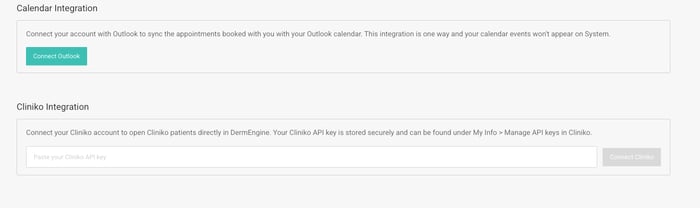
- In DermEngine, click your name in the top right, select Account, then Integrations in the left menu.
- Under Cliniko Integration, paste the key and click Connect Cliniko.
Setup (Cliniko button):
This is needed once per Cliniko clinic. If the “Open in DermEngine” button is already there, skip this section. Other doctors in the same clinic share that button after they connect their own Cliniko account in DermEngine.
After you connect, DermEngine shows an App URL on the Cliniko card. Copy that URL, then add the button in Cliniko.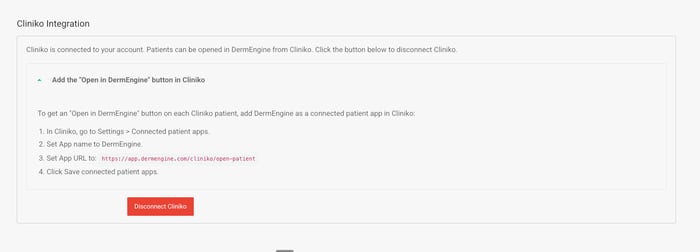
- In Cliniko, click Settings in the left menu, then Our clinic > Integrations. Scroll to Connected patient apps.
- Set App name to DermEngine.
- Set App URL to the URL shown in DermEngine.
- Click Save connected patient apps.
This adds an “Open in DermEngine” button on each patient’s actions bar in Cliniko.
Open Patients
Use the same browser you use for DermEngine.
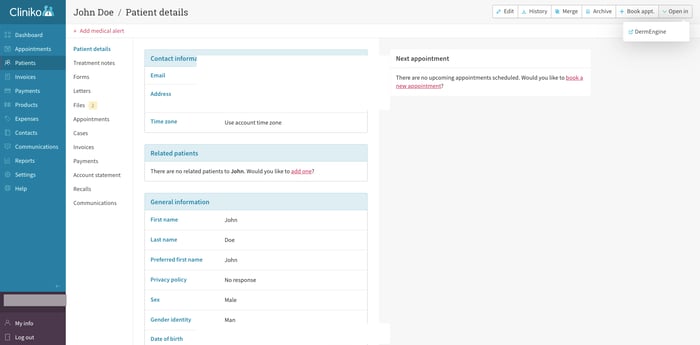
- In Cliniko, open the patient and click Open in DermEngine.
- If you are not logged in, sign in. If you have more than one clinic, select the clinic, then continue.
- The patient opens on their DermEngine spot page. The first time, the patient is created or matched in DermEngine. Opening the same Cliniko patient again updates their details.
Export Timeline Reports to Cliniko:
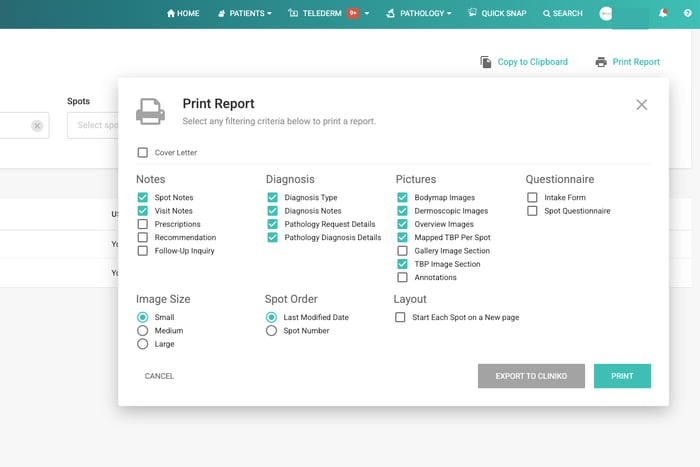
Print Report shows Export to Cliniko when the logged-in doctor has connected Cliniko. The button is enabled only if this patient was opened from Cliniko.
- On DermEngine, open the patient and click Print Report.
- Click Export to Cliniko.
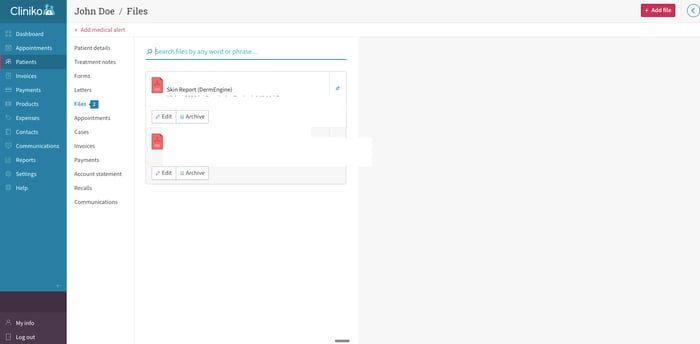
- In Cliniko, open the same patient and check the Files tab for the report (Skin Report (DermEngine)).